
Sharing a map using a link
Overview
Maps created in your account can only be viewed by you, by default. To share maps with others you can create a share link.
Viewer permissions
When you create a share link, anyone with the share link can access your map and the underlying data.
When a map is viewed from a share link, the 'Edit Map' pane on the right-hand side is inaccessible. People viewing the map are limited to the map layers and components that have been set up on the shared map, allowing the map creator to curate an experience for viewers.
Example share link
Here is an example of a map shared with a share link: https://app.honeycombmaps.com/shared/ttfLqZPXQjJ8_aYdjUcZ6HmPzvDNTnkk
Creating a share link
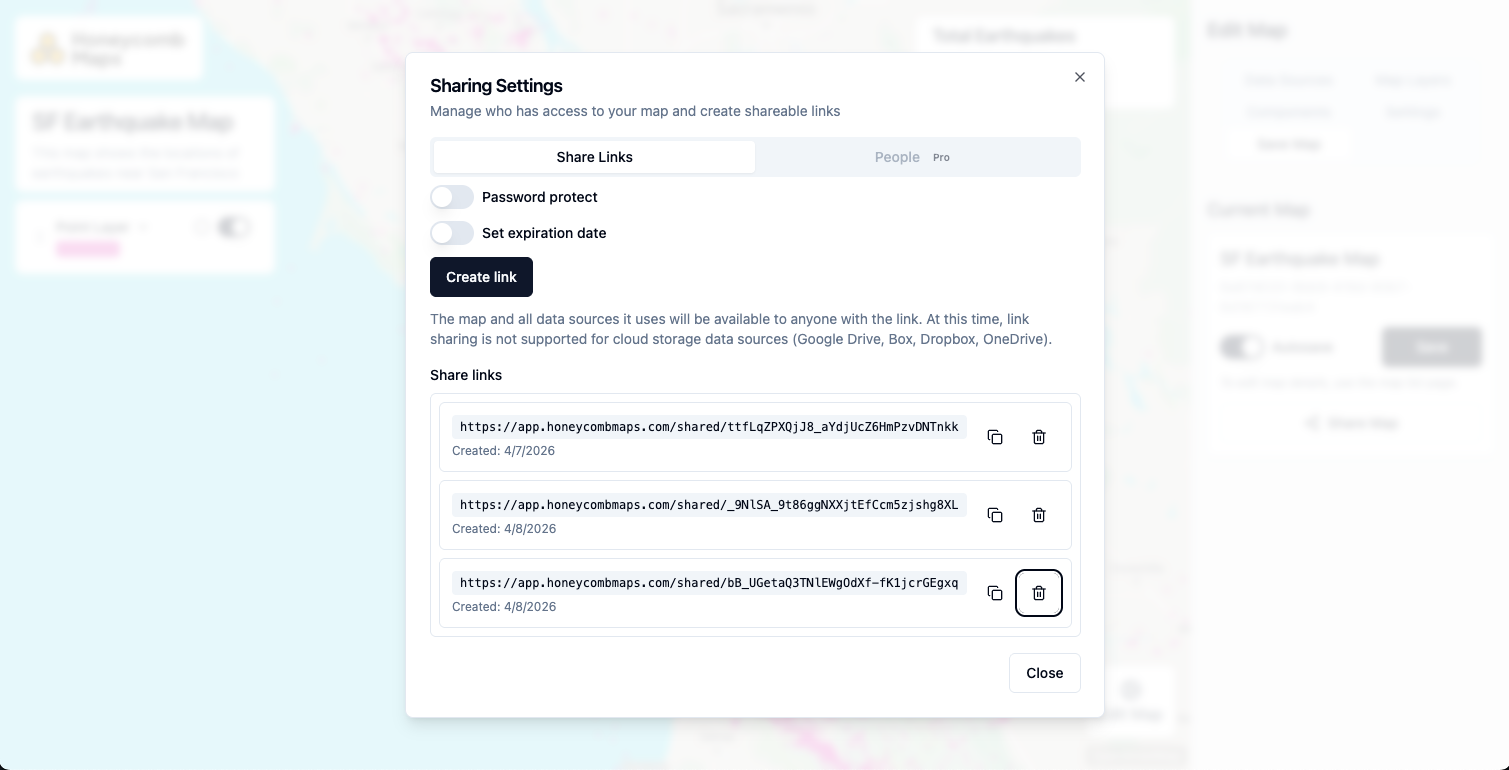
To create a share link, open the sharing settings dialog. This can be done from the map editor Save Map tab by clicking on Share Map. It can also be opened from the homepage by clicking on the three dots next to a map, then on Control sharing.
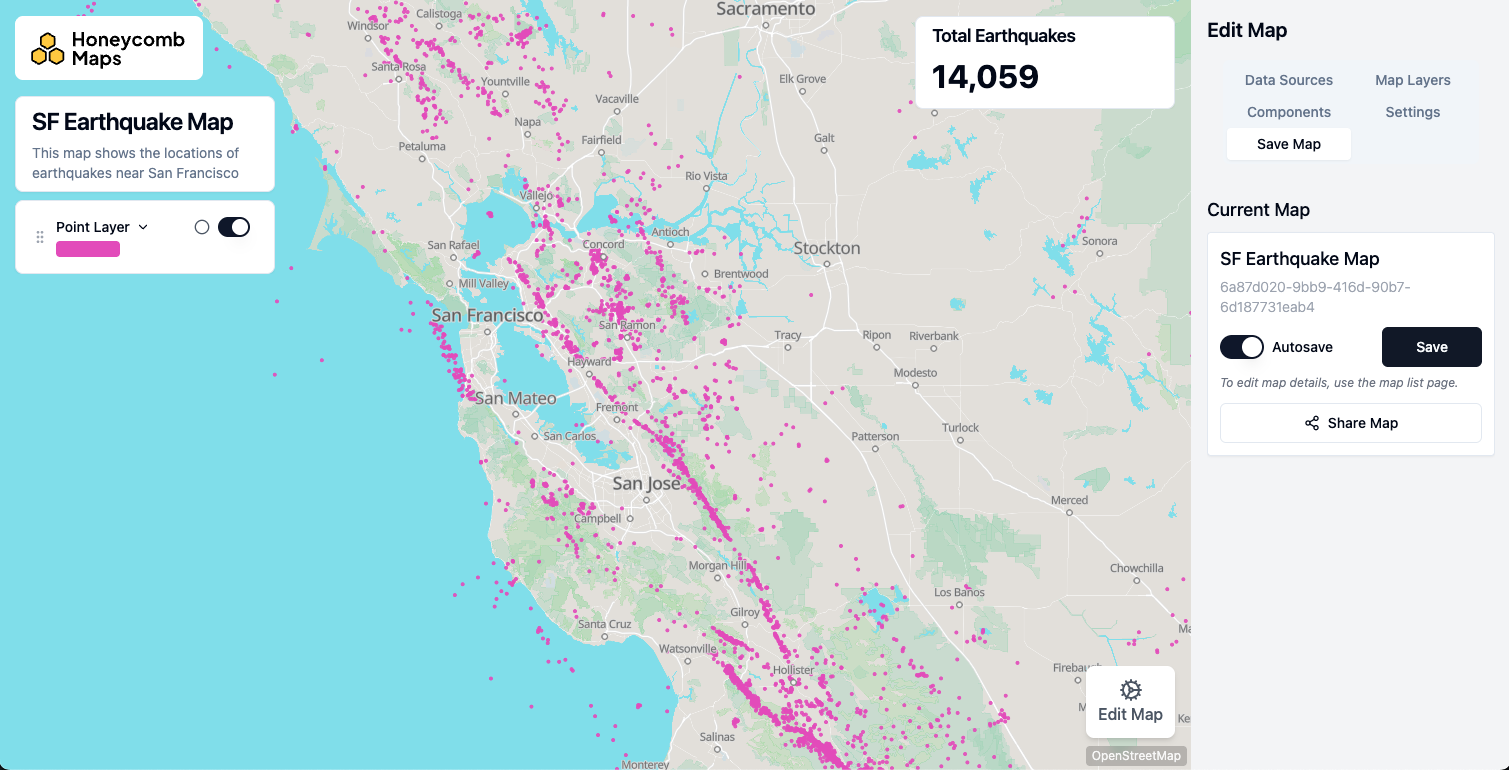
From the sharing settings dialog, click on Create link to generate a share link.
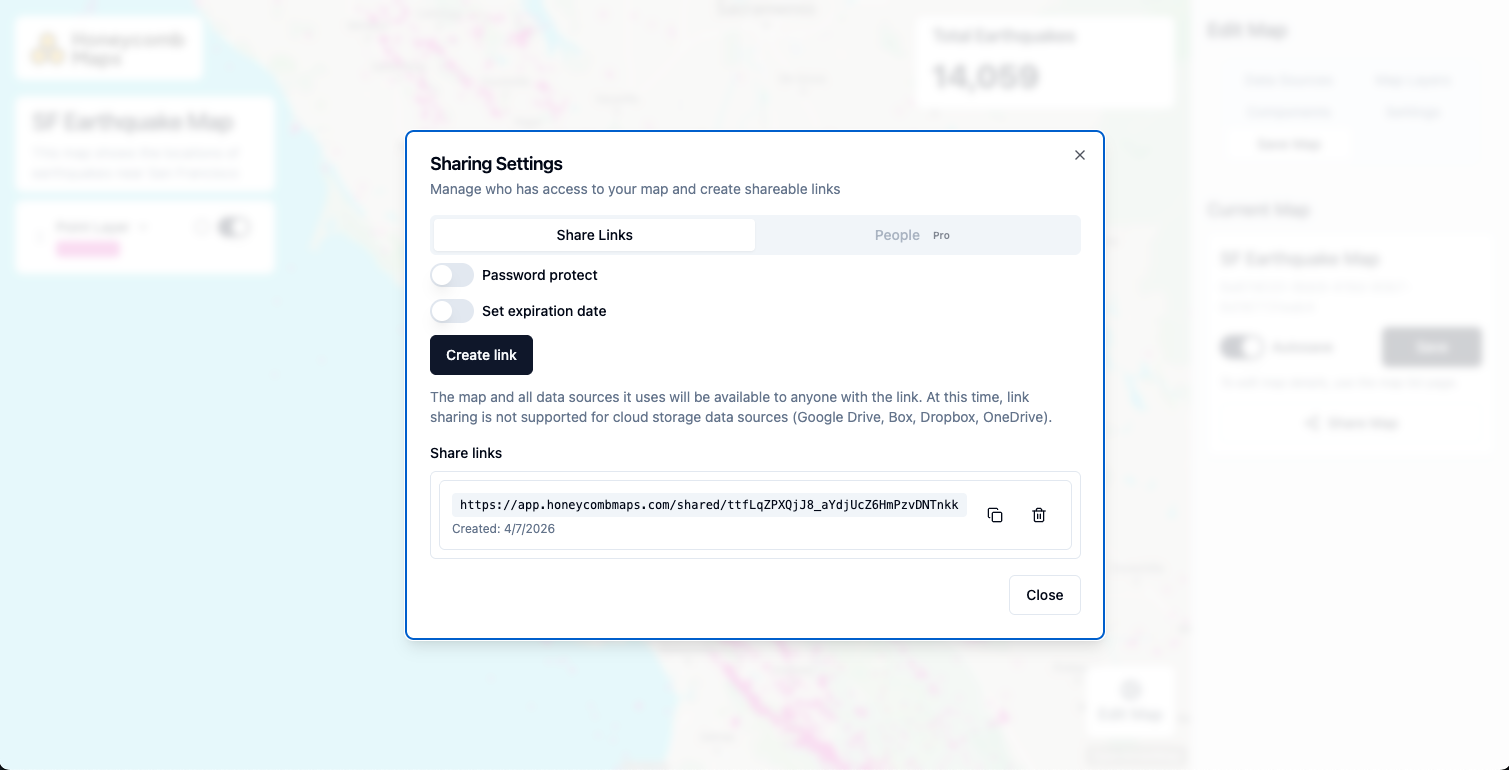
Once a share link is created, it will show up in the share links list. A share link can be copied to the clipboard by clicking on the copy icon.
Creating password-protected share links
Share links can be created that require a password to open. In this case, to access the map a person must have both the share link and knowledge of the password.
This can be useful when sharing with a specific audience, such as a client.
To create a password-protected share link, enable the Password Protect toggle before clicking Create link.
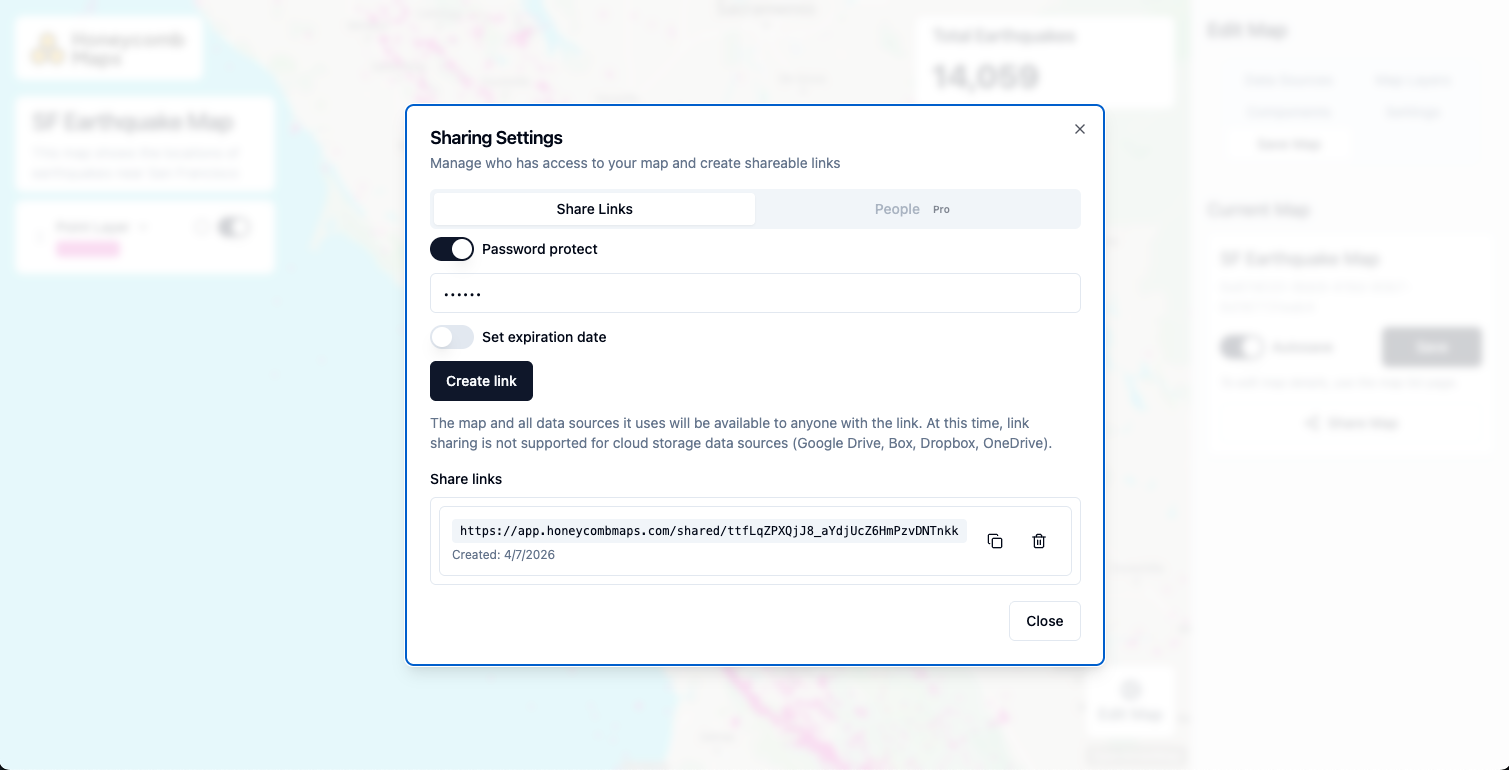
Here is an example of a shared link that requires a password: https://app.honeycombmaps.com/shared/_9NlSA_9t86ggNXXjtEfCcm5zjshg8XL
The password for the map above is quakes.
Creating expiring share links
Share links can be created that expire after a certain date. To create an expiring share link, enable the Set expiration date toggle and select an expiration date, then click on Create link.
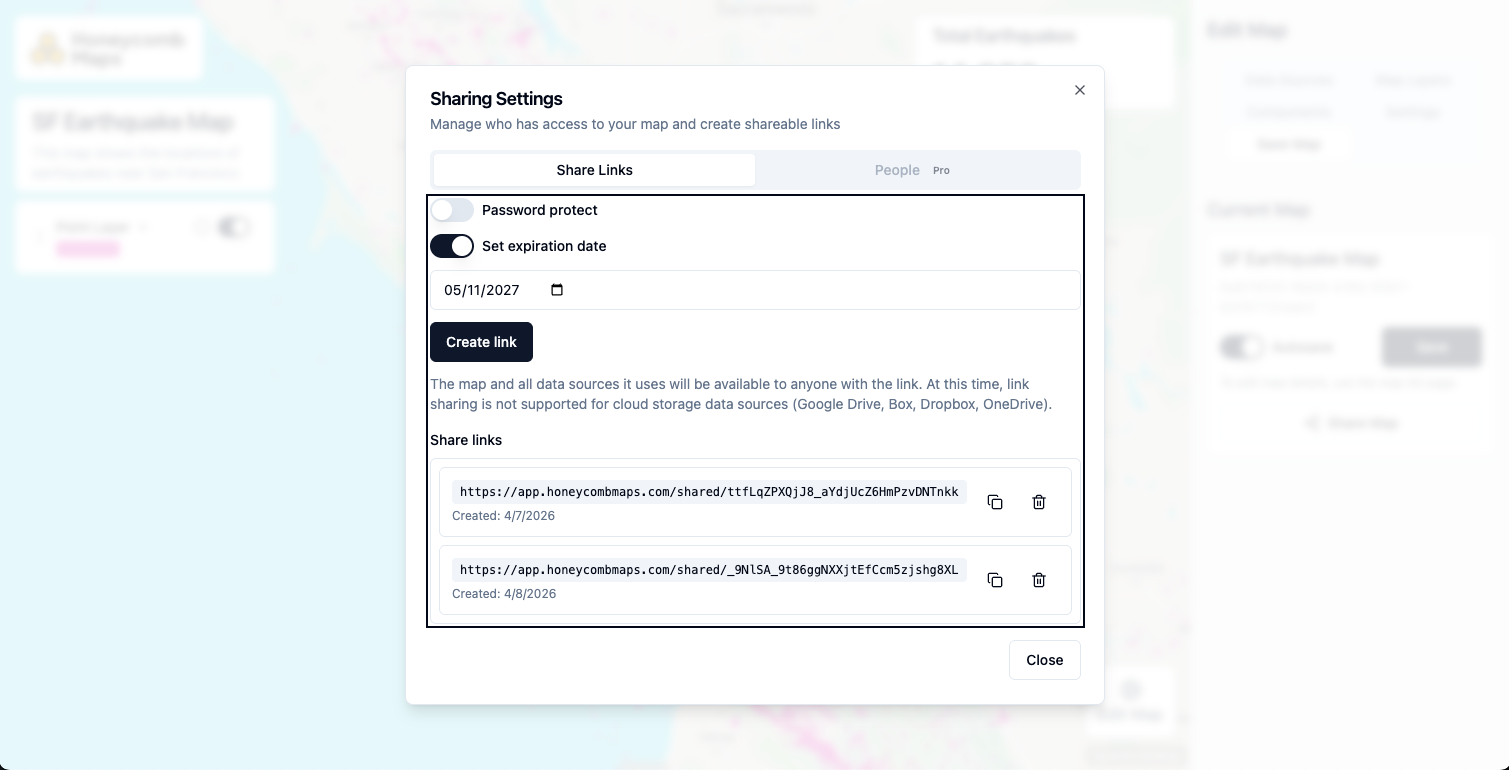
Here is an example of a share link that has expired: https://app.honeycombmaps.com/shared/pNPdAkjjDMFHCMWlRuY7v6YEFSqy3ByJ
Deleting share links
Share links can be deleted anytime by clicking on the trash can icon to the right of the share link. Immediately after a share link is deleted it will become inactive. Users who attempt to use a link that has been deleted will see an error.
Here is an example of a share link that has been deleted: https://app.honeycombmaps.com/shared/hIrCAYxVUrf1PlMjDVJgNnqyh6IdJexA
Limitations
Maps shared with a public link can't include data sources that are user-based, because it would require viewers to go through an OAuth sign-in process.
Business accounts do support map sharing with OAuth (user-based) data sources. Each user accesses the database with their own identity, ensuring that role-based access controls on the database level are always enforced.