
SQL Parameters
SQL Parameters are placeholders that you insert into a SQL data source's query and then control through the map. Instead of loading an entire table and filtering it in the browser, parameters let you fetch only the subset of data you actually need — for example, a single city, a date range, or just the area currently visible on the map.
A parameter is defined once and is available across the whole map. The same parameter can be referenced by multiple data sources, controlled by an on-map component, set from the URL, or filled in automatically from the current map view.
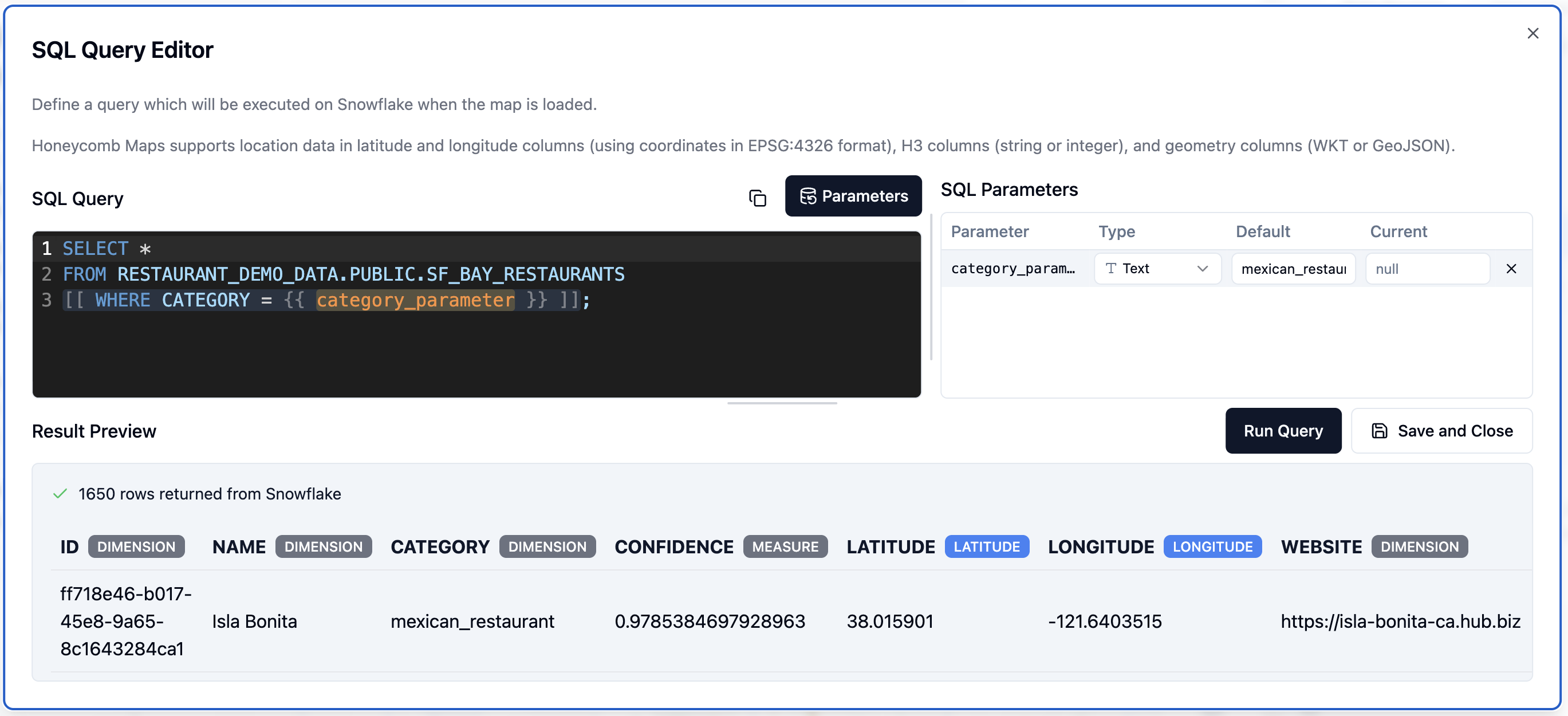
Creating parameters in the SQL editor
You create parameters directly in the SQL Query editor for a data source. Honeycomb Maps uses a small templating syntax with two parts: placeholders and optional clauses.
Placeholders
Wrap a parameter name in double curly braces to insert a placeholder:
SELECT *
FROM SF_BAY_RESTAURANTS
WHERE CATEGORY = {{ category_parameter }}
When you type a {{ ... }} placeholder, Honeycomb Maps detects it and adds the parameter to the SQL Parameters panel on the right of the editor. If a query already contains a placeholder, this panel opens automatically; otherwise you can open it with the Parameters button.
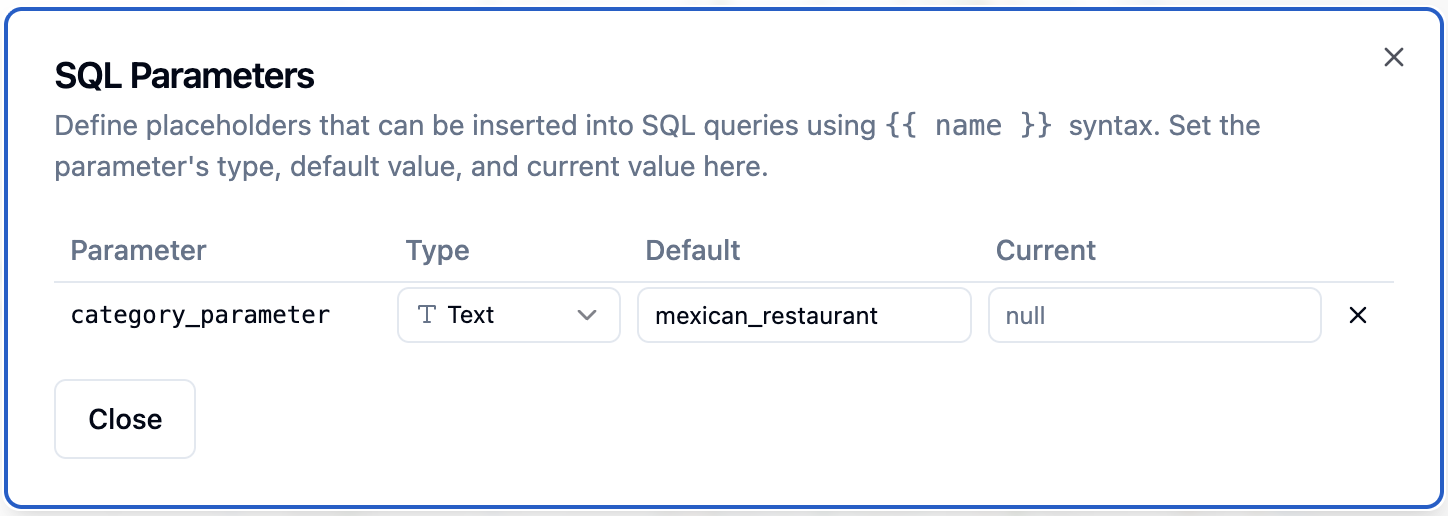
The panel lists every parameter defined for the map. Parameters used by the query you are currently editing are shown at the top with an accented background, so you can see at a glance which values affect this query. For each parameter you can set its Type, Default value, and Current value.
INFO
SQL Parameter values are sent to connected data warehouses as a bound query parameters, not substituted directly into the query text. This prevents unintended operations like DROP TABLE from free-text parameter inputs.
Optional clauses
Sometimes you want part of a query to apply only when a parameter has a value. Wrap that part in double square brackets to make it optional:
SELECT *
FROM SF_BAY_RESTAURANTS
[[ WHERE CATEGORY = {{ category_parameter }} ]]- If
category_parameterhas a value, the whole[[ ... ]]clause is included. - If the parameter is null (no value), the entire clause is dropped — so the query returns all rows.
If a clause references more than one parameter, it is dropped only when all of those parameters are null. If any one of them has a value, the clause is kept. Square-bracket clauses cannot be nested inside one another.
How a parameter's value is determined
Every parameter has a current value and a default value, and either may be empty. When a query runs, Honeycomb Maps resolves the value to use in this order:
- Current value — used whenever it is set.
- Default value — used when there is no current value.
- Null — used when neither is set.
A null value matters for optional clauses: as described above, a [[ ... ]] clause whose parameters are all null is removed from the query entirely.
The Reset button on a parameter's control returns the current value to the default value. If there is no default value, Reset clears the current value to null.
Setting a default value is a good way to ensure a parameter always has a value — even after a reset, the parameter falls back to the default instead of becoming null. This can control the amount of data that is fetched from large database tables.
Parameter types and their controls
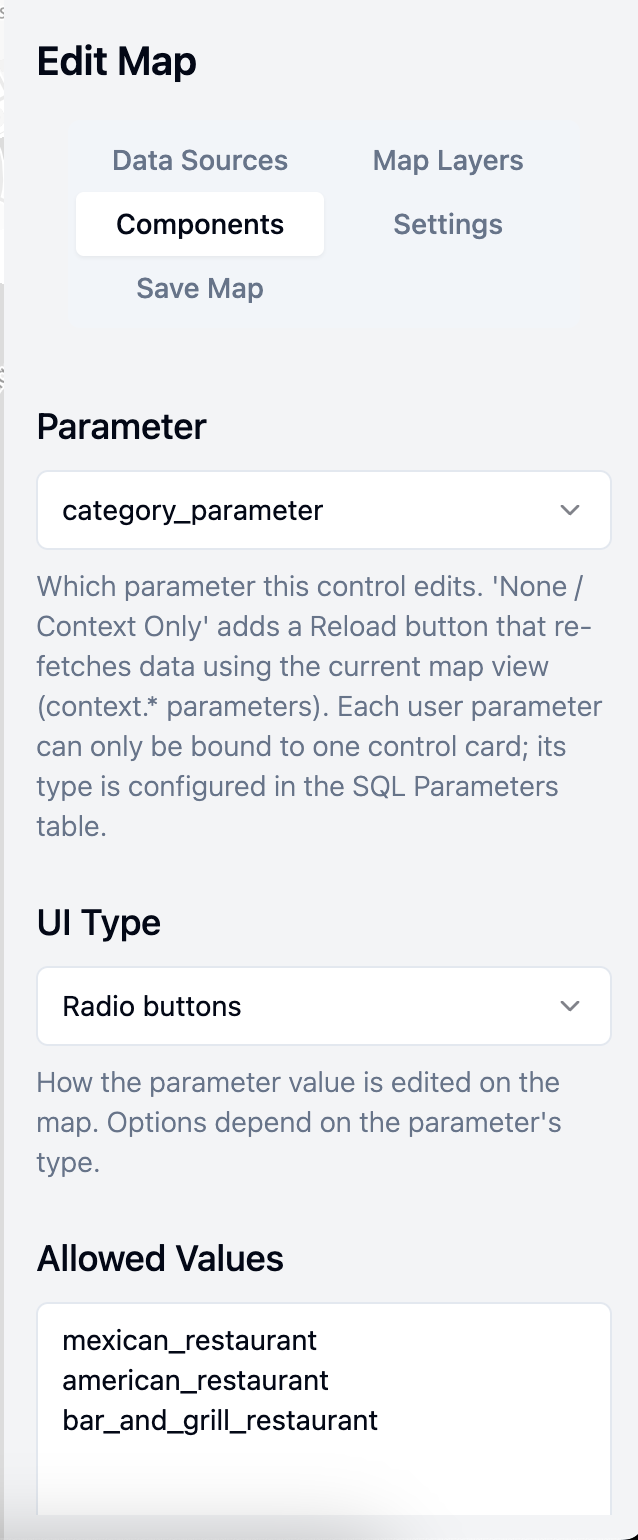
Each parameter has a type that determines both how its value is validated and which user interface controls are available for it. There are three types: Text, Number, and Date & time. You choose the parameter, its UI type, and any allowed values when configuring a Parameter Control component in the Components editor.
Text
Text parameters hold string values. They support three control styles:
- Free text input — the user types any value.
- Dropdown — the user selects from a predefined list of values.
- Radio buttons — the user picks one value from a set shown as radio options.
The dropdown and radio styles draw their choices from the parameter control's allowed values. You provide these as a list, one value per line. Blank lines are ignored and surrounding whitespace is trimmed.
Number
Number parameters hold numeric values and support two control styles:
- Number input — the user types a number.
- Slider — the user drags to choose a value. A slider requires a minimum and maximum to define its range.
For either style you can enable an integer option to restrict the value to whole numbers, and you can set a minimum and maximum to constrain the allowed range.
Date & time
Date & time parameters hold a date or date-and-time value and use the browser's built-in date/time picker. Values are stored in ISO 8601 format (for example, 2026-05-14 or 2026-05-14T13:45:00).
The Parameter Control component
To let map viewers change a parameter, add a Parameter Control component. Like a filter, it appears on top of the map, on the left or right side. Each control is bound to one parameter, and a given parameter can be connected to only one control.
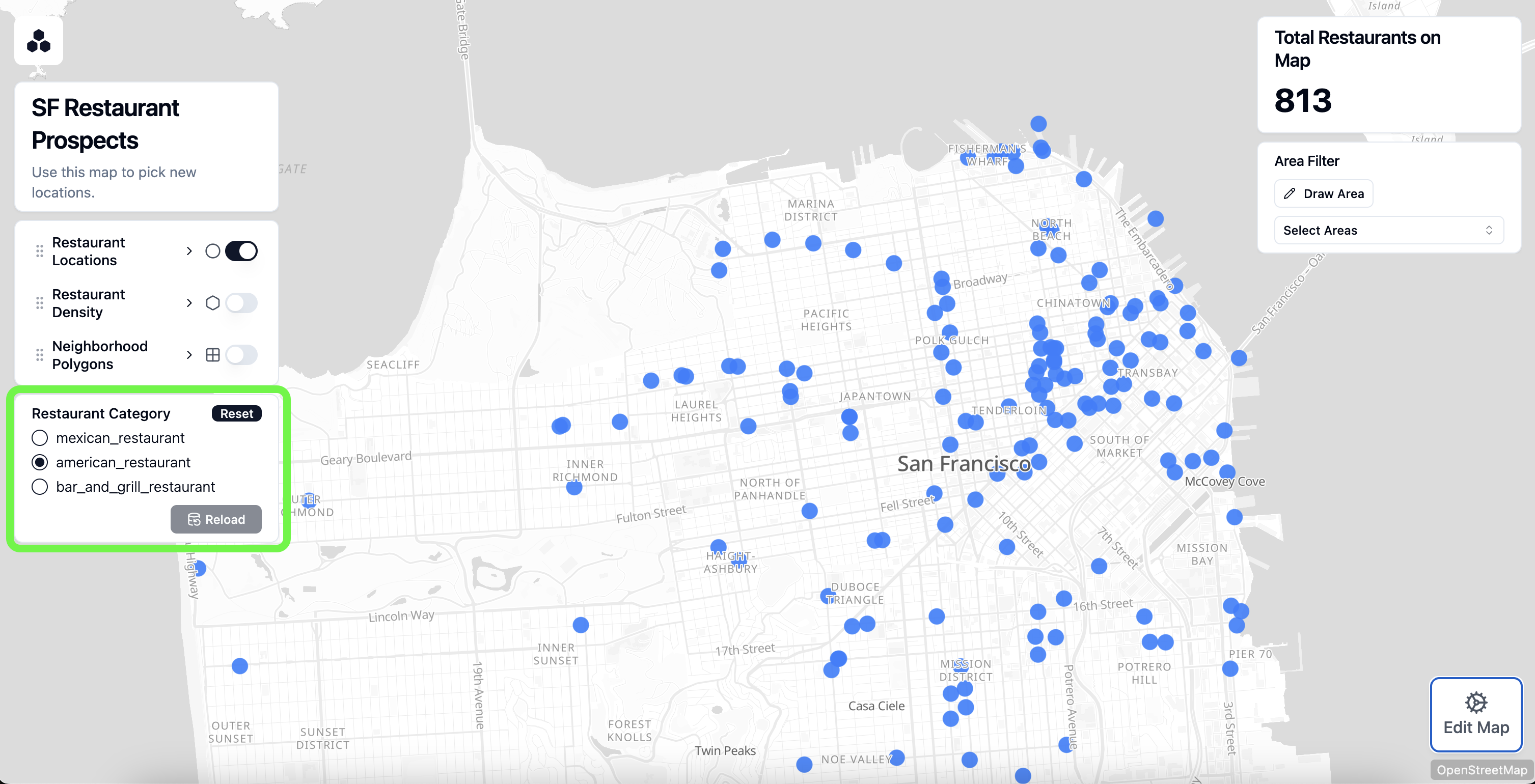
A parameter control shows the input appropriate to the parameter's type and UI style (see above), plus two buttons:
- Reset — returns the current value to the default value (or to null if there is no default).
- Reload — commits the value the user has chosen and reloads any data sources that use the parameter. Data is re-fetched only when the committed value differs from the value last used to load the data, so clicking Reload with no change does nothing.
TIP
Give each parameter a sensible default value so the map loads with useful data the first time a viewer opens it, before they have changed anything.
Context parameters
Context parameters are special parameters that Honeycomb Maps fills in automatically from the current map view. You do not define them in the Parameters panel — you simply reference them by name in a query, and they are highlighted in green in the editor to distinguish them from your own parameters. All context parameters resolve to numbers.
| Parameter name | Value |
|---|---|
context.min_latitude | Southern edge of the current map view |
context.max_latitude | Northern edge of the current map view |
context.min_longitude | Western edge of the current map view |
context.max_longitude | Eastern edge of the current map view |
context.zoom_level | Current MapLibre zoom level (0–22, including decimals) |
The four latitude/longitude bounds are well suited to a bounding-box query that loads only the data within the area the user is looking at. For a SQL data source with latitude and longitude columns:
SELECT *
FROM SF_BAY_RESTAURANTS
WHERE LATITUDE BETWEEN {{ context.min_latitude }} AND {{ context.max_latitude }}
  AND LONGITUDE BETWEEN {{ context.min_longitude }} AND {{ context.max_longitude }}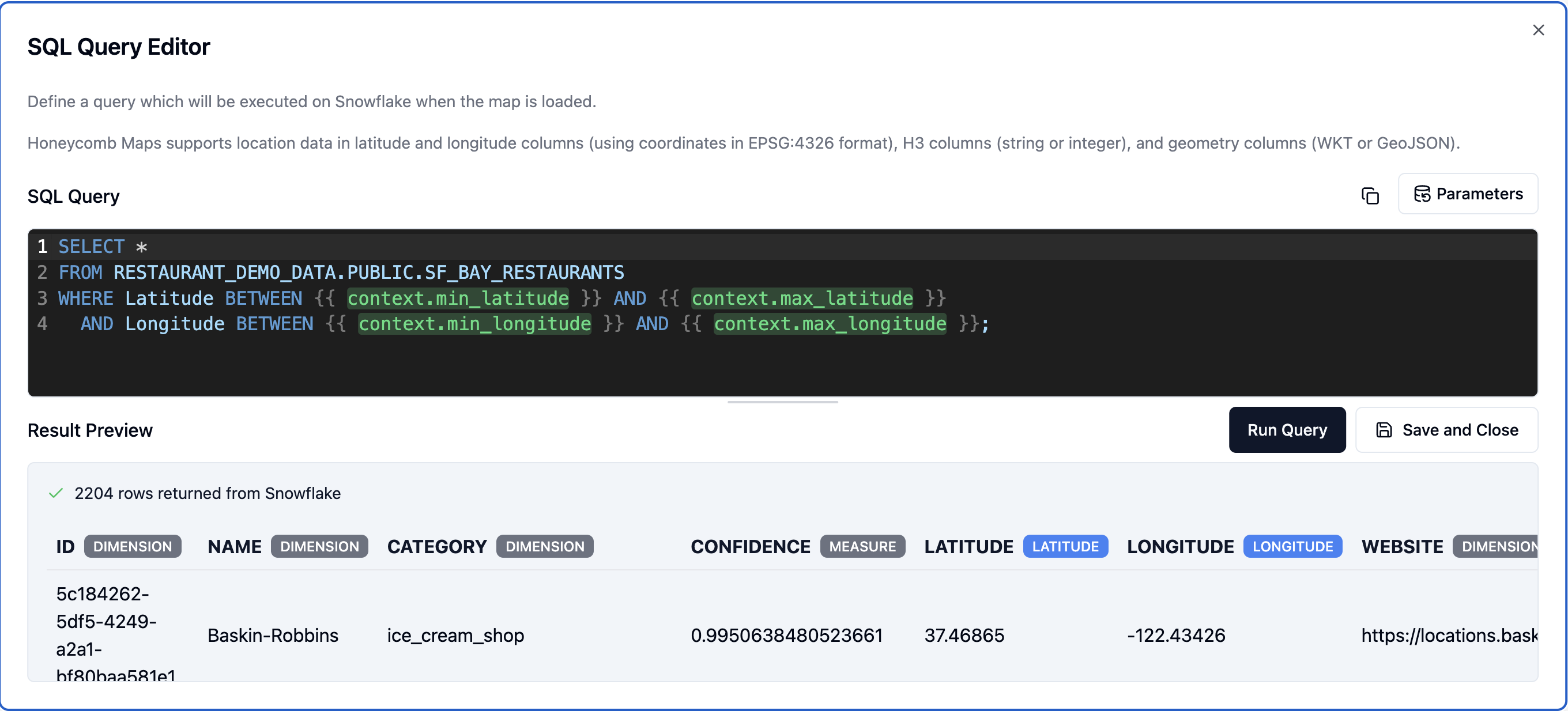
As the user pans and zooms, the bounds change. To pull data for the new view, add a Parameter Control component bound to context. A context control has no value input — it shows only a Reload button, which re-fetches every data source that references a context.* parameter using the current view.
Using parameters across multiple data sources
Parameters belong to the map as a whole, not to a single data source. Because every data source's query references parameters by name, the same parameter can be used in several queries at once.
For example, a city parameter could appear in a "stores" data source query and an "orders" data source query. When a viewer changes city and fetches data, both data sources reload with the same value. A single Parameter Control component is enough to drive every query that uses that parameter, keeping the whole map in sync.
Setting parameters from the URL
You can set parameter values directly in a map's URL using a query string, in the form ?name=value. This works for shared maps as well, which makes it easy to link someone to a map showing exactly the data you want them to see.
https://app.honeycombmaps.com/your-map?city=PortlandWhen the map loads, each URL value sets the current value of the matching parameter before the initial data is fetched, so the map opens already showing the requested data. A few details to keep in mind:
- Only parameters that are already defined for the map are applied. URL values whose names don't match a defined parameter are ignored.
- Date & time parameters expect an ISO 8601 value (for example
2026-05-14T13:45:00), URL-encoded so the colons are safe in a query string — for example?as_of=2026-05-14T13%3A45%3A00. - Combine several parameters by separating them with
&, for example?city=Portland&category=cafe.
Managing parameters in Settings
Every parameter you create is also listed in the SQL Parameters section of the map's Settings menu. This section shows the same Type, Default value, and Current value information as the SQL editor panel (pictured above), giving you one place to review and adjust every parameter on the map without opening each data source's query.
Filters vs. SQL parameters
SQL parameters and filters both narrow down the data shown on the map, but they work at different stages and suit different tasks.
- SQL parameters modify the query that runs against the connected database. Changing a parameter fetches new data from the database, so updates take longer. Use parameters to control which data is pulled in the first place — for example, a single market or a specific time period — so you never load more than you need.
- Filters are applied to data after it has loaded into Honeycomb Maps. Because they run on the client, they update instantly. Use filters for interactive analysis, letting viewers slice and explore the data that is already on the map.
A common pattern is to combine the two: use a SQL parameter to pull the relevant slice of a large table, then add filters so viewers can explore that slice without waiting for another query.
Best practices
- Keep the shape of the data consistent. A parameter should change which rows a query returns, not which columns. Avoid using parameters to add, remove, or rename returned columns, or to otherwise alter the structure of the result. Layers and components expect the same columns each time data reloads, so a changing shape can break the map.
- Use default values to cap large tables. Setting a sensible default value ensures a query never fetches an entire very large table — even before a viewer chooses a value, and after they click Reset, the default keeps the result set to a manageable size.