
Parameter Control
The Parameter Control component lets map viewers change a SQL parameter and reload the map with new data. It is the on-map counterpart to a parameter defined in a data source's query: where the parameter decides which rows are fetched from Snowflake, the Parameter Control gives viewers a control — a dropdown, radio buttons, a slider, and so on — to set that parameter's value.
For example, a "market performance" dashboard built on a table with millions of rows can expose a city parameter through a Parameter Control. A viewer picks their city, clicks Reload, and only that city's data is fetched from the database.
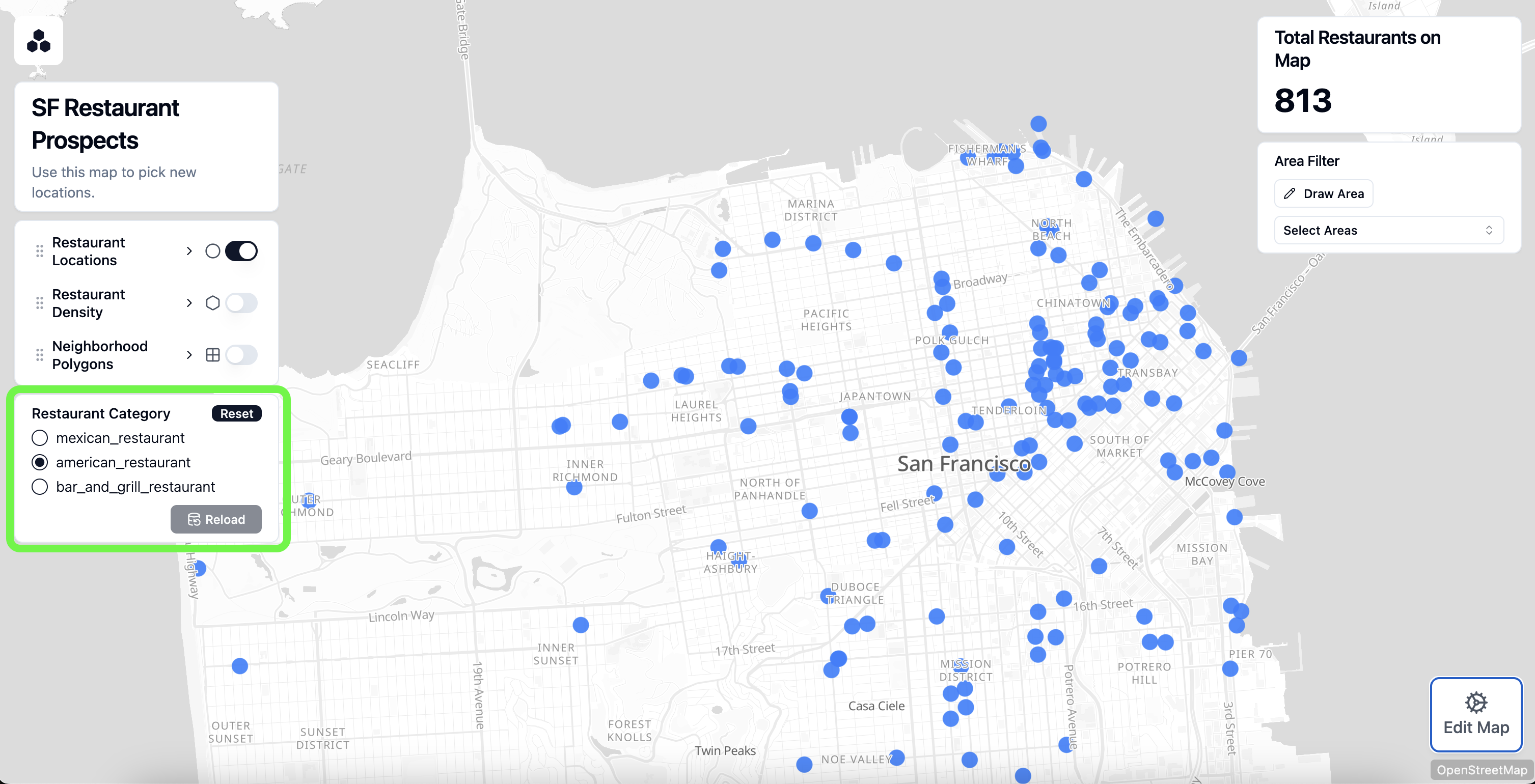
Like a filter, the component appears on top of the map, on the left or right side. Each control is bound to one parameter, and a given parameter can be connected to only one control.
INFO
A Parameter Control only does something if the map has SQL parameters defined. Parameters are created in a data source's SQL Query editor, and their type is set in the SQL Parameters table. See the SQL Parameters reference for how to define them.
Configuration Options
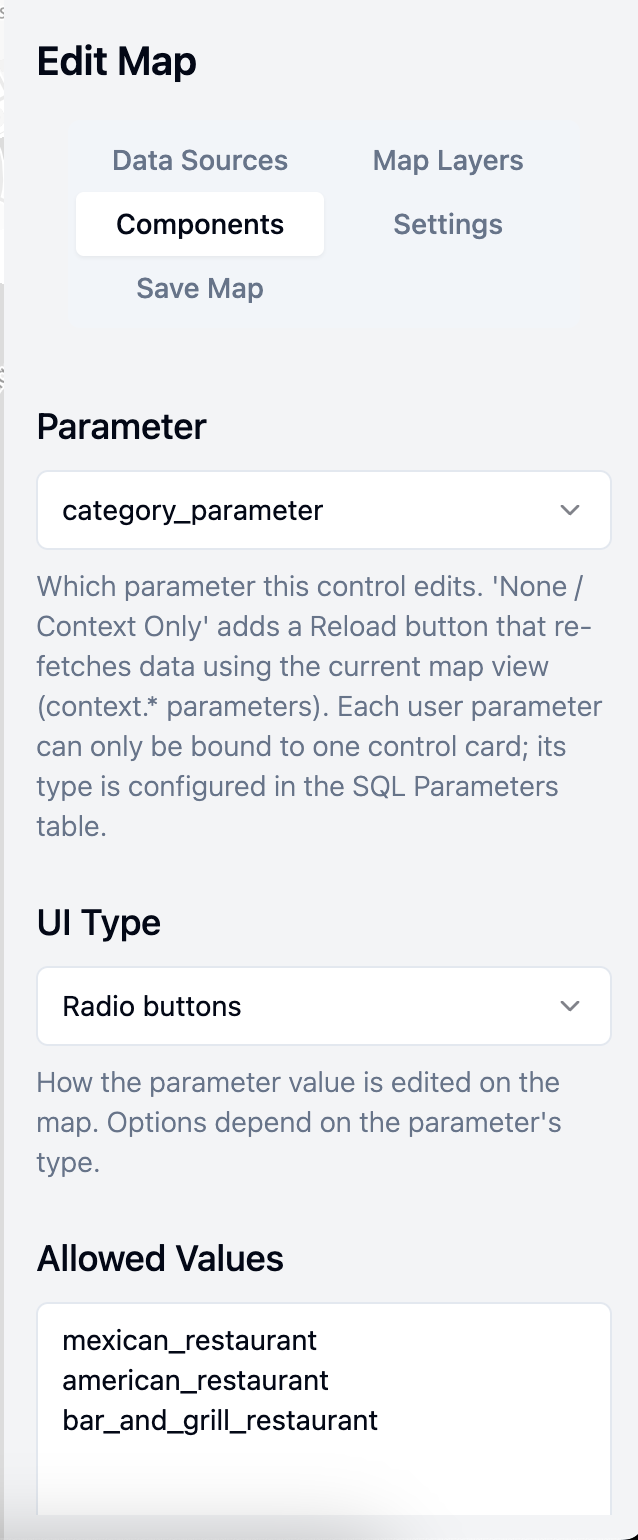
Configure a Parameter Control from the Components menu in the sidebar.
Title
An optional title shown at the top of the card.
Subtitle
Optional help text shown under the title.
Parameter
Which parameter this control edits. The dropdown lists every parameter defined for the map, plus a None / Context Only option (see Context-only controls below).
Each user parameter can be bound to only one control. A parameter that is already used by another control is shown as disabled, labelled with the control that owns it.
UI Type
How the parameter's value is edited on the map. The available styles depend on the bound parameter's type, which is set in the SQL Parameters table:
- Text parameters: Free text input, Dropdown, or Radio buttons.
- Number parameters: Number input or Slider.
- Date & time parameters: a Date picker.
Allowed Values
Shown only for text parameters using the Dropdown or Radio buttons style. Enter one value per line; these are the choices presented to the viewer. Blank lines are ignored and surrounding whitespace is trimmed.
Minimum, Maximum, and Integer only
Shown only for number parameters:
- Minimum / Maximum: Optional bounds on the value. A Slider requires both to define its range.
- Integer only: Restrict the value to whole numbers.
Using a Parameter Control
On the map, a Parameter Control shows the input appropriate to its parameter and UI style, along with two buttons:
- Reset: Returns the parameter's current value to its default value. If there is no default, Reset clears the value to null.
- Reload: Commits the value the viewer has chosen and reloads any data sources that use the parameter. Data is re-fetched only when the committed value differs from the value last used to load the data, so clicking Reload with no change does nothing.
Because parameters belong to the map as a whole, a single control can drive every query that references its parameter. If a city parameter is used by both a "stores" query and an "orders" query, one Parameter Control reloads both data sources in sync.
TIP
Give each parameter a sensible default value so the map loads with useful data the first time a viewer opens it, before they have changed anything.
Context-only controls
Selecting None / Context Only for the Parameter binding creates a control with no value input — just a Reload button. Instead of editing a parameter you define, it re-fetches every data source that references a context parameter (such as context.min_latitude) using the current map view.
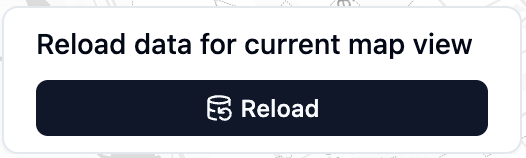
This is the typical way to support a bounding-box query: as the viewer pans and zooms, they click Reload to pull data for the area they are now looking at.
Related Documentation
- SQL Parameters — define parameters, optional clauses, context parameters, and URL parameters
- Filter — filter already-loaded data on the client (compared with parameters, which change what is fetched)