
Honeycomb Map Language (HML)
Behind the scenes, Honeycomb Maps stores maps using a declarative, structured language called Honeycomb Map Language (HML)
HML is written in JSON, and defines every aspect of a Honeycomb Map - the data sources to load, specific colors of map layers, and all components and cross-filtering logic.
HML is tightly defined by a published schema (see below). This schema, written in JSON Schema syntax, provides strict rules about the allowed values for each property. This can be thought of as the 'rules' for what HML files must include.
The goal of HML is to provide a flexible way to declaratively define the appearance of an interactive map while abstracting away implementation details.
HML Schema files
The current HML JSON Schema is available here: hml_schema_v1.0.6.json.
It is also available on GitHub.
Using AI tools to generate maps with HML
AI tools are highly capable at generating HML because it has tightly-defined rules and can easily be validated against the official published schema.
This design allows AI tools to generate bespoke maps that are tailored to specific business problems, with map rendering logic and potential bugs abstracted away.
Maps generated with AI tools using HML function exactly like maps created through the traditional Honeycomb Maps UI.
Best practices
Give your AI tool the full schema file, as well as the HML config that you are working on. Tell it to ensure that the config validates against the schema.
A skill will be released soon which encapsulates all of this documentation.
Sample prompt
I am working on an interactive map with Honeycomb Maps. I have attached the Honeycomb Maps Language (HML) Schema, which is a declarative JSON-based syntax for describing a data-driven interactive map in HML. Ensure that any maps you create validate against this schema, using any tools that you have.

Change the color of the point layer to blue, and add a component that shows the number of points. Also add a dropdown filter on the type column.
Validating HML
Inside Honeycomb Maps
The Honeycomb Maps web application and Snowflake Native App displays the current HML config for each map. The HML can also be edited directly, with immediate validation. HML content can also be pasted from an AI tool.
To view the HML configuration for an existing map in Honeycomb, go to the homepage, open the three-dot menu on the right of a map in the list, and click on View Map Config.
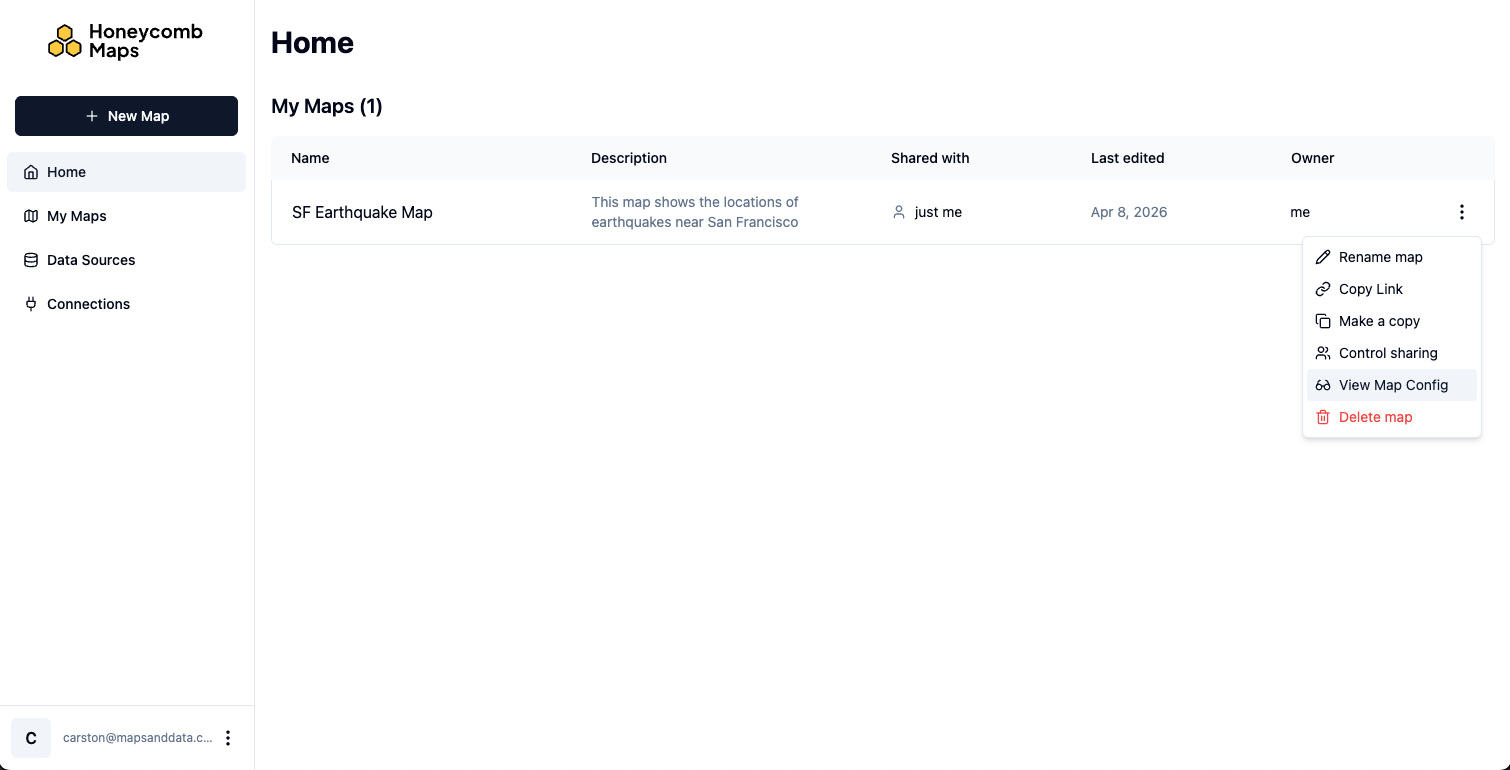
This will open the map configuration dialog, which shows the current map configuration. You can copy the map configuration to the clipboard by clicking on the copy icon.
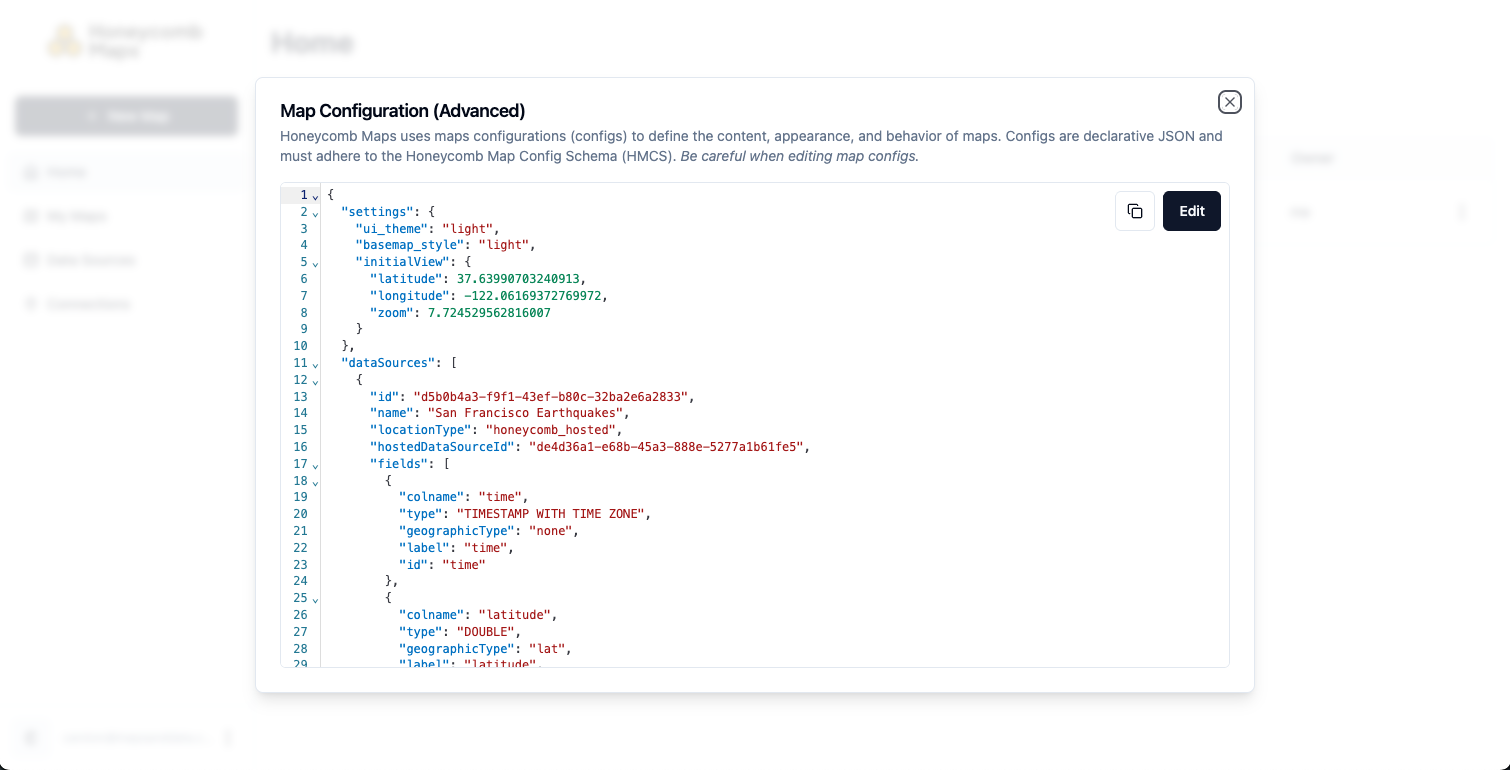
Clicking Edit allows you to edit the map config directly. As you edit the config text, it will be validated in real-time.
If the config is not valid, it will highlight errors and saving will be disabled. You can also click on copy errors to clipboard to copy the validation errors to the clipboard, which can then be pasted into AI tools to correct issues.
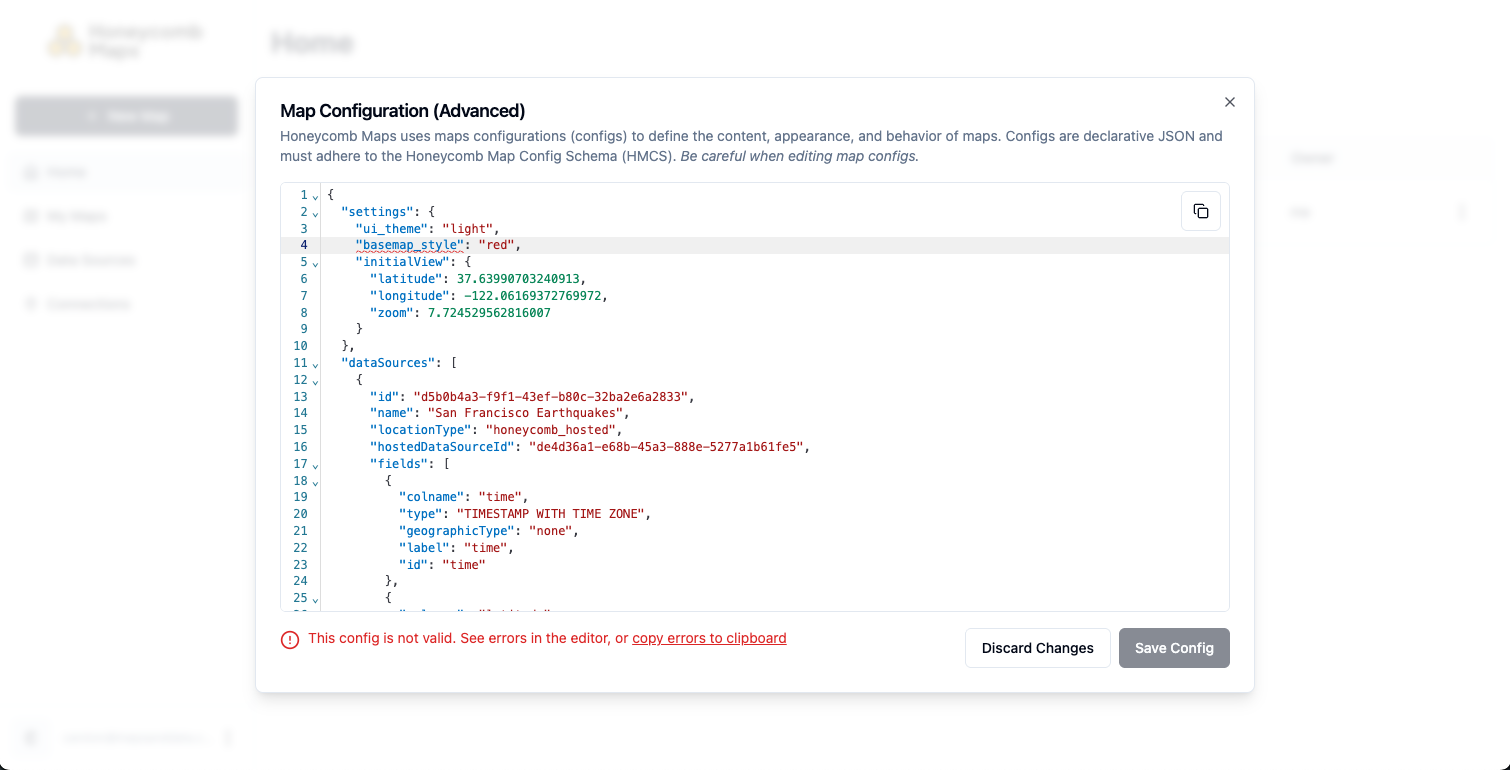
In the screenshot above, the HML is not valid because 'Red' is not an allowed value for the property basemap_style.
In the browser
We plan to publish a web-based tool soon that allows you to validate whether a block of text is valid HML.
Using code-based tools
HML uses JSON syntax, and the HML Schema is a JSON Schema file. They can be validated using a variety of common open-source tools.
Command Line Tools
ajv-cli (Node.js-based)
bashnpm install -g ajv-cli
ajv validate -s hml_schema_v1.0.5.json -d map_config.json
check-jsonschema (Python-based)
bashpip install check-jsonschema
check-jsonschema --schemafile hml_schema_v1.0.5.json map_config.json
jv (Go-based)
A lightweight, fast validator written in Go.
bashgo install github.com/santhosh-tekuri/jsonschema/cmd/jv@latest
jv hml_schema_v1.0.5.json map_config.json
Python
Using the jsonschema library (the standard in Python):
pythonimport json
from jsonschema import validate, ValidationError

with open("hml_schema_v1.0.5.json") as f:
    schema = json.load(f)

with open("map_config.json") as f:
    document = json.load(f)

try:
    validate(instance=document, schema=schema)
    print("Valid!")
except ValidationError as e:
    print(f"Invalid: {e.message}")
Install with pip install jsonschema.
JavaScript / TypeScript
Using ajv (the dominant JS validator):
import Ajv from "ajv";
import fs from "fs";

const ajv = new Ajv();
const schema = JSON.parse(fs.readFileSync("hml_schema_v1.0.5.json", "utf8"));
const data = JSON.parse(fs.readFileSync("map_config.json", "utf8"));

const valid = ajv.validate(schema, data);
if (valid) {
  console.log("Valid!");
} else {
  console.log("Invalid:", ajv.errorsText());
}
Updates to HML
HML will be updated as new functionality is added to Honeycomb Maps. These updates will be released as new versions of the HML Schema and will be available on this page and on GitHub.
The Honeycomb Maps application automatically migrates maps to the most recent HML version when maps are saved.
HML Schema License
Copyright (c) 2026 Maps and Data LLC. All rights reserved.